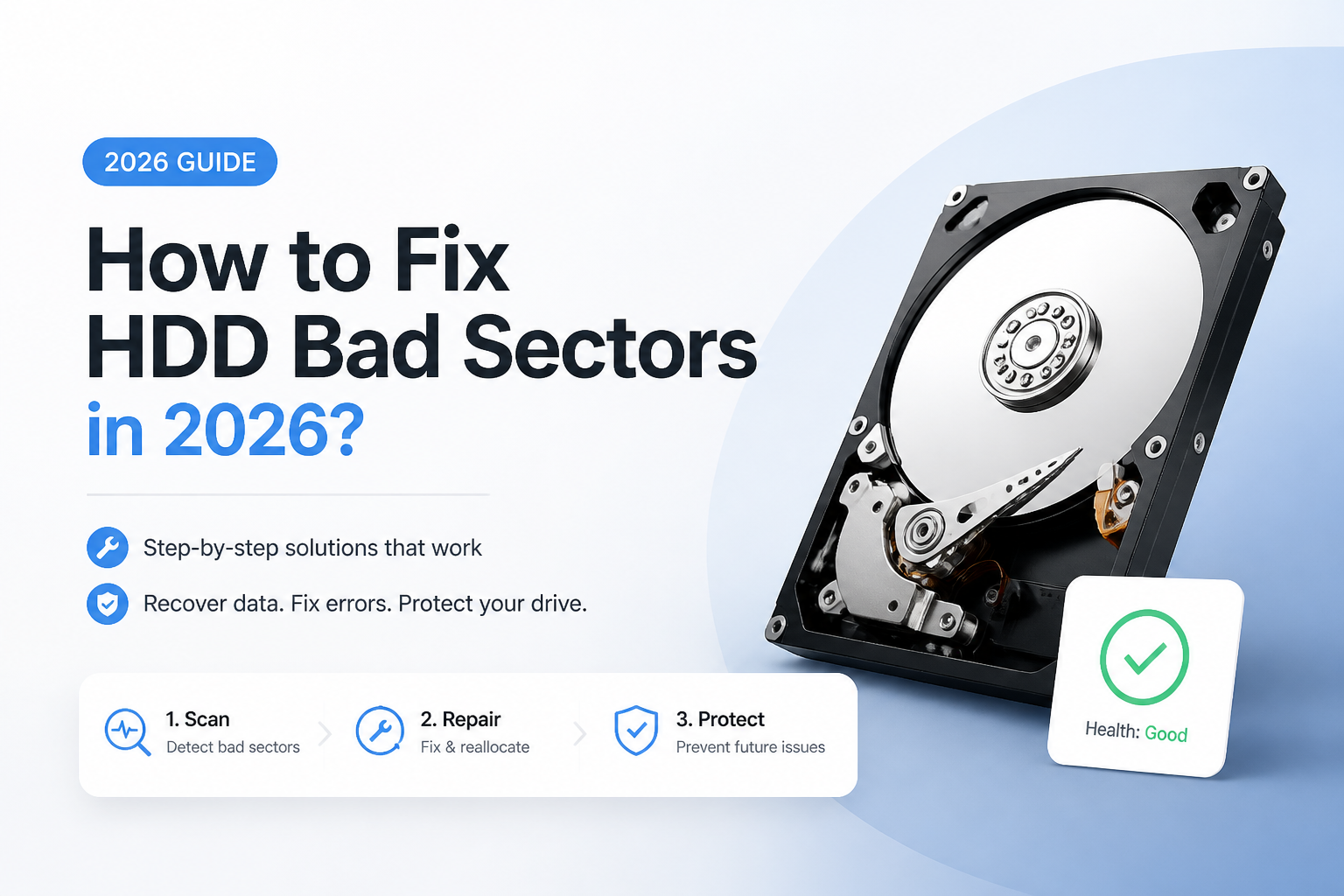
How to Fix HDD Bad Sectors in 2026?
You cannot physically heal a damaged platter with software. You can rescue readable data, rule out connection trouble, mark unusable clusters, then decide if the HDD is safe to reuse.
Back up or image the HDD before trying to repair bad sectors. Use Disk Drill to create a byte-to-byte image, recover important files from that image, then inspect SMART data. Run
chkdsk /r
only if the drive remains stable.
Stop using the HDD if it clicks, scrapes, disconnects, or contains irreplaceable files. Repair scans can place sustained load on weak hardware. Do not initialize, format, defragment, or erase the disk before recovery.
Protect Data Before Repair → Disk Drill
Creates byte-to-byte disk images · Scans images instead of repeatedly reading the original HDD · Windows plus macOS
Top 5 Methods to Handle HDD Bad Sectors
01 Image the HDD With Disk Drill
Safest first move when files matter more than keeping the old drive in service
~10 min setup
Image the HDD With Disk Drill
Safest first move when files matter more than keeping the old drive in service
Bad sectors often signal media trouble, so protect the readable data before attempting repairs. Disk Drill can create a byte-to-byte image that you scan without repeatedly stressing the original HDD. (disk-drill.com)
- Stop copying files to the affected HDD, then close any apps using it.
- Connect a healthy drive with enough free space for an image of the entire problem disk.
- Open Disk Drill, select Byte-to-byte Backup, then choose the affected physical HDD.
- Save the disk image to the healthy drive. Do not save it on the damaged HDD.
- Mount or add the completed image in Disk Drill, scan it, preview key files, then recover them to a separate healthy disk.

02 Check SMART Data, Cables, Plus Ports
Useful for separating real media damage from a flaky connection
~10 min
Check SMART Data, Cables, Plus Ports
Useful for separating real media damage from a flaky connection
A loose SATA lead, weak USB bridge, or failing power adapter can produce read errors that resemble bad sectors. SMART data also helps show whether the disk is reallocating sectors or waiting to retest unstable ones.
- Save a screenshot of the current SMART report before changing anything.
- Check Reallocated Sector Count, Current Pending Sector Count, plus Offline Uncorrectable. Raw values above zero deserve caution.
- Shut down the computer, then reseat the data cable plus power cable.
- For an external HDD, try a short known-good USB cable, another direct USB port, plus the original power supply if one exists.
- Read the SMART report again after copying essential data. Rising raw counts point toward a degrading drive, not a one-time Windows error.
03 Run CHKDSK With the Recovery Switch
Reasonable for a stable Windows volume after important files are secured
1–12+ hr
Run CHKDSK With the Recovery Switch
Reasonable for a stable Windows volume after important files are secured
CHKDSK can locate unreadable clusters, recover readable information where possible, then keep Windows from using marked clusters. The
/r
scan reads the full volume, so large HDDs may take many hours. (learn.microsoft.com)
- Confirm that important files are backed up or recoverable from the image made in Method 1.
- Open Windows Terminal or Command Prompt as administrator.
- Run
chkdsk E: /r, replacingE:with the correct volume letter. - If Windows says the volume is in use, approve a scan at restart or unmount the non-system volume safely.
- Let the scan finish without powering off the PC, then review the summary for bad clusters or unreadable records.
- Check SMART data again. Replace the HDD if pending, reallocated, or uncorrectable counts continue climbing.
04 Run a Destructive Full-Surface Test
A last test for an empty drive you are willing to erase completely
3–24+ hr
Run a Destructive Full-Surface Test
A last test for an empty drive you are willing to erase completely
A full write-read test may prompt the HDD firmware to remap weak sectors. This does not heal platter damage, plus it destroys every partition, file, recovery trace, plus backup stored on that disk.
- Verify recovered files by opening several documents, photos, archives, plus videos from the destination drive.
- Disconnect other storage disks where practical, reducing the chance of erasing the wrong device.
- Download the HDD maker's official diagnostic utility, then confirm the affected drive by model plus serial number.
- Choose the tool's extended, full erase, or write-read test only after confirming that no data is needed from the disk.
- After the test, power-cycle the HDD, inspect SMART raw values, then run another extended read test.
- Retire the drive if errors return, SMART counts rise, or the vendor utility reports failure.
05 Replace the HDD or Use a Recovery Lab
The right choice for clicking, repeated disconnects, or worsening sector counts
Varies
Replace the HDD or Use a Recovery Lab
The right choice for clicking, repeated disconnects, or worsening sector counts
Some drives are too unstable for software repair. Clicking, scraping, failed spin-up, severe slowness, disappearing capacity, or repeated disconnects are reasons to stop DIY work.
- Power down the HDD if it clicks, scrapes, vanishes during reads, or prevents the computer from booting normally.
- Write down the model, serial number, symptoms, plus every repair or scan already attempted.
- If the files are replaceable, install a new drive, restore your backup, then recycle or securely dispose of the failed unit.
- If the files are unique, contact a specialist that performs hardware imaging plus clean-room work where required.
- Ask for a written evaluation, expected cost range, return-media policy, plus terms for unsuccessful recovery before authorizing work.
When Software Should Not Touch a Failing HDD
Software is the wrong first move if the HDD clicks, scrapes, spins down unexpectedly, reports the wrong capacity, or disappears from BIOS. Power it off. If the files are valuable, preserve its current condition for a recovery specialist.
A slow but steady disk may still be imageable. A disk that repeatedly resets during reads is a different problem, since each retry places more strain on weak hardware.
Choose the Right Method for HDD Bad Sectors
Start with data protection, then move toward repair or replacement.
| Method | Best for | Time | Success rate |
|---|---|---|---|
| 1. Image the HDD With Disk Drill TRY FIRST | Protecting readable files before repair | ~10 min setup | ● 90% |
| 2. Check SMART Data, Cables, Plus Ports | Diagnosing false errors or early failure | ~10 min | ● 75% |
| 3. Run CHKDSK With the Recovery Switch | Stable drives with file-system damage | 1–12+ hr | ● 70% |
| 4. Run a Destructive Full-Surface Test | Testing an empty HDD after recovery | 3–24+ hr | ● 45% |
| 5. Replace the HDD or Use a Recovery Lab | Mechanical failure or recurring errors | Varies | ● 95% |
Which HDD Bad-Sector Method Should You Use?
Start by imaging the affected HDD with Disk Drill if the files have any value. A stable drive with a few logical errors may be suitable for SMART checks followed by CHKDSK, while recurring sector errors usually justify replacement.
Skip repair utilities if the HDD makes unusual sounds, drops offline, or becomes slower with every attempt. Those symptoms make a recovery lab the safer route.
Recover first, verify the recovered files on another disk, then test or erase the old HDD. Never reverse that order.